Translate Operator
v0.1.0New
Overview
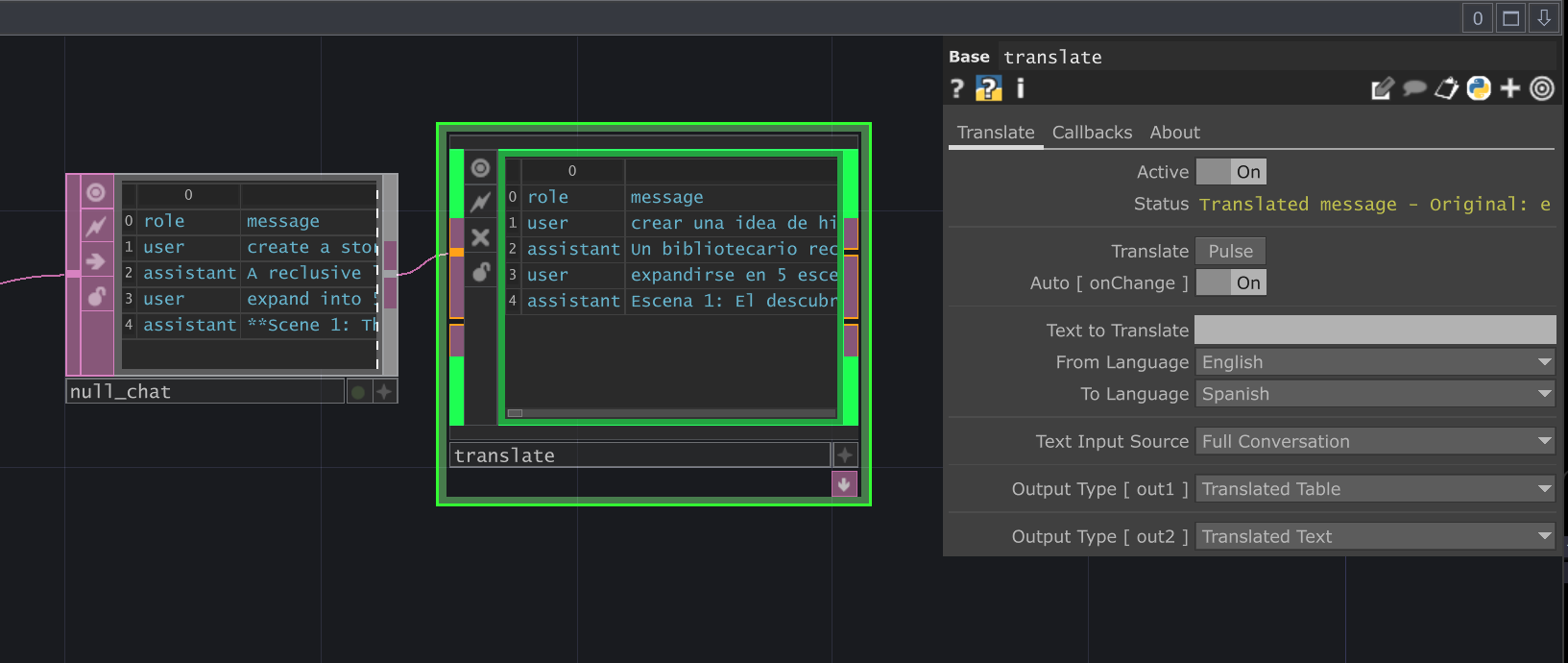
Section titled “Overview”The Translate LOP leverages the argostranslate Python library to perform offline text translation between numerous languages directly within TouchDesigner. It can translate individual text snippets, text from DATs, or entire conversation histories. Because it operates offline after initial language package downloads, it is ideal for real-time applications or environments with limited internet access.
Requirements
Section titled “Requirements”- Python Packages:
argostranslate: The core translation library. Install it via the ChatTD Python Manager.
- Language Packages: Specific language pair models (e.g., English to Spanish) need to be downloaded the first time they are used. The operator will prompt for installation if a required package is missing when translation is triggered.
Input/Output
Section titled “Input/Output”Inputs
Section titled “Inputs”- Input 1 (Optional Table DAT): Connect a Table DAT containing conversation history here. Required when using
Text Input Sourcemodes likeFull Conversation,All User Messages, etc. Expected columns:role,message,id,timestamp. - Input 2 (Optional Text DAT): Connect a Text DAT containing the text to be translated here. Used only when
Text Input Sourceis set toInput DAT [ in2 ].
Outputs
Section titled “Outputs”- Output 1 (Table DAT): Contains the translated conversation table. Structure mirrors the input conversation table, but with messages translated according to the selected
Text Input Sourcemode. Controlled by theOutput Type [ out1 ]parameter. - Output 2 (Text DAT): Contains the translated text as plain text or translation statistics, depending on the
Output Type [ out2 ]parameter.
Usage Examples
Section titled “Usage Examples”Basic Parameter Text Translation
Section titled “Basic Parameter Text Translation”- Ensure
argostranslateis installed via ChatTD Python Manager. - On the Translate page, set
Text Input SourcetoParameter Text. - Enter text into the
Text to Translatefield (e.g., “Hello, how are you?”). - Select
From Language(e.g., English). - Select
To Language(e.g., French). - Pulse the
Translatebutton. - The operator may prompt you to install the English to French language package if it is the first time. Click
Install. - View the translated text at the second output.
Translating from Input DAT
Section titled “Translating from Input DAT”- Create a Text DAT and enter the text you want to translate.
- Connect it to the second input of the Translate operator.
- Set
Text Input SourcetoInput DAT [ in2 ]. - Select
From LanguageandTo Language. - Pulse
Translate(or enableAuto [ onChange ]for automatic translation on input changes). - View the translated text at the second output.
Translating a Full Conversation Table
Section titled “Translating a Full Conversation Table”- Connect a Table DAT with columns
role,message,id,timestampto the first input of the Translate operator. - Set
Text Input SourcetoFull Conversation. - Select
From LanguageandTo Language. - Set
Output Type [ out1 ]toTranslated Table. - Pulse
Translate(or enableAuto [ onChange ]). - View the translated conversation table at the first output.
Translating Role-Specific Messages
Section titled “Translating Role-Specific Messages”- Connect a conversation Table DAT to the first input.
- Set
Text Input SourcetoAll User Messages,All Assistant Messages, orSystem Messagesto translate only messages from a specific role. - Select your language pair and pulse
Translate. - The output table preserves all messages but only translates those matching the selected role.
Technical Notes
Section titled “Technical Notes”- Offline Operation: Core translation is fully offline after the necessary language packages are downloaded.
- Package Installation: Language packages are downloaded and installed on demand when a specific language pair is first used. This requires an internet connection only during the installation phase and may briefly freeze the TouchDesigner UI.
- Asynchronous Translation: The translation process runs asynchronously to prevent blocking the main TouchDesigner thread, especially for longer texts or full conversations.
- Supported Languages: 30 languages are available including English, Spanish, French, German, Italian, Portuguese, Dutch, Russian, Japanese, Korean, Chinese, Arabic, Hindi, and more. The full list is visible in the
From LanguageandTo Languagemenus. - Performance: Translation speed depends on the complexity of the text, the language pair, and system performance. Translating large conversation tables will take longer than single snippets.
Parameters
Section titled “Parameters”Translate
Section titled “Translate” Active (Active)
op('translate').par.Active Toggle - Default:
False
Status (Status)
op('translate').par.Status Str - Default:
"" (Empty String)
Translate (Translate)
op('translate').par.Translate Pulse - Default:
False
Auto [ onChange ] (Onchange)
op('translate').par.Onchange Toggle - Default:
False
Text to Translate (Text)
op('translate').par.Text Str - Default:
"" (Empty String)
Callbacks
Section titled “Callbacks” Callbacks Header
Callback DAT (Callbackdat)
op('translate').par.Callbackdat DAT - Default:
ChatTD_callbacks
Edit Callbacks (Editcallbacksscript)
op('translate').par.Editcallbacksscript Pulse - Default:
False
Create Callbacks (Createpulse)
op('translate').par.Createpulse Pulse - Default:
False
onTranslateComplete (Ontranslatecomplete)
op('translate').par.Ontranslatecomplete Toggle - Default:
False
Callbacks
Section titled “Callbacks” Available Callbacks:
onTranslateComplete
Example Callback Structure:
def onTranslateComplete(info):
# Called after a translation task completes successfully.
# info dictionary contains:
# - op: The Translate operator instance
# - text: The original input text or list of texts
# - translated_text: The resulting translated text or list
# - from_code: Source language code (e.g., 'en')
# - to_code: Target language code (e.g., 'es')
# - generation_time: Time taken for the translation in seconds
# - input_source: The 'Text Input Source' mode used
# - status: Success message or error details

print(f"Translation completed from {info.get('from_code')} to {info.get('to_code')}.")
print(f"Time taken: {info.get('generation_time'):.2f} seconds")

# Example: Check if translation was successful before proceeding
# if 'success' in info.get('status', '').lower():
#   op('downstream_processor').par.Cook.pulse()
pass