- GUIDES
OP Create Dialog & Settings
Placing Operators
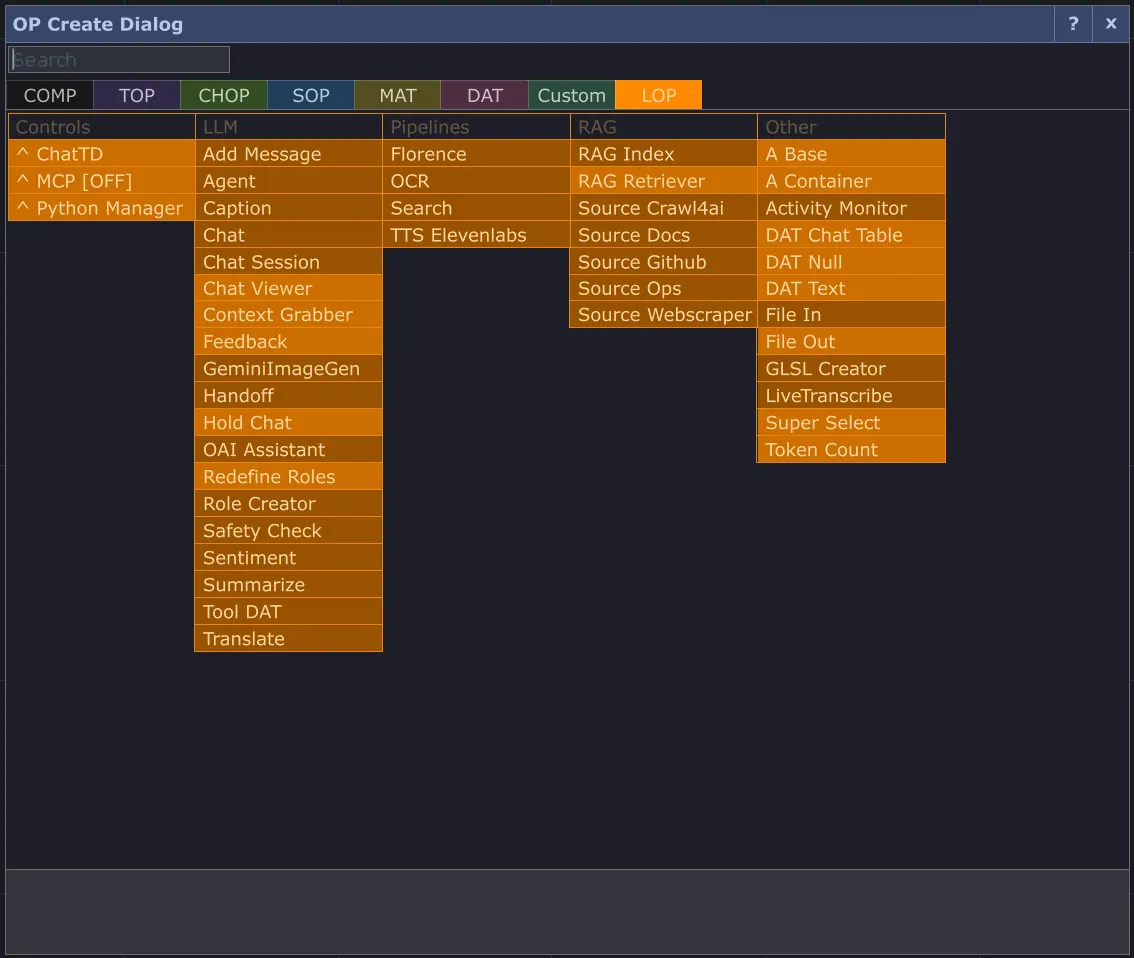
Section titled “Placing Operators”Open the OP Create Dialog (press Tab or double-click the network background) and switch to the LOP tab. Operators are organized into groups — Controllers, Pipelines, Retrievers, Modifiers, and Settings.
Settings UI
Section titled “Settings UI”Some entries in the LOP tab are action buttons that open the Settings UI instead of placing an operator. These give you quick access to global configuration:
| Tab | What it does |
|---|---|
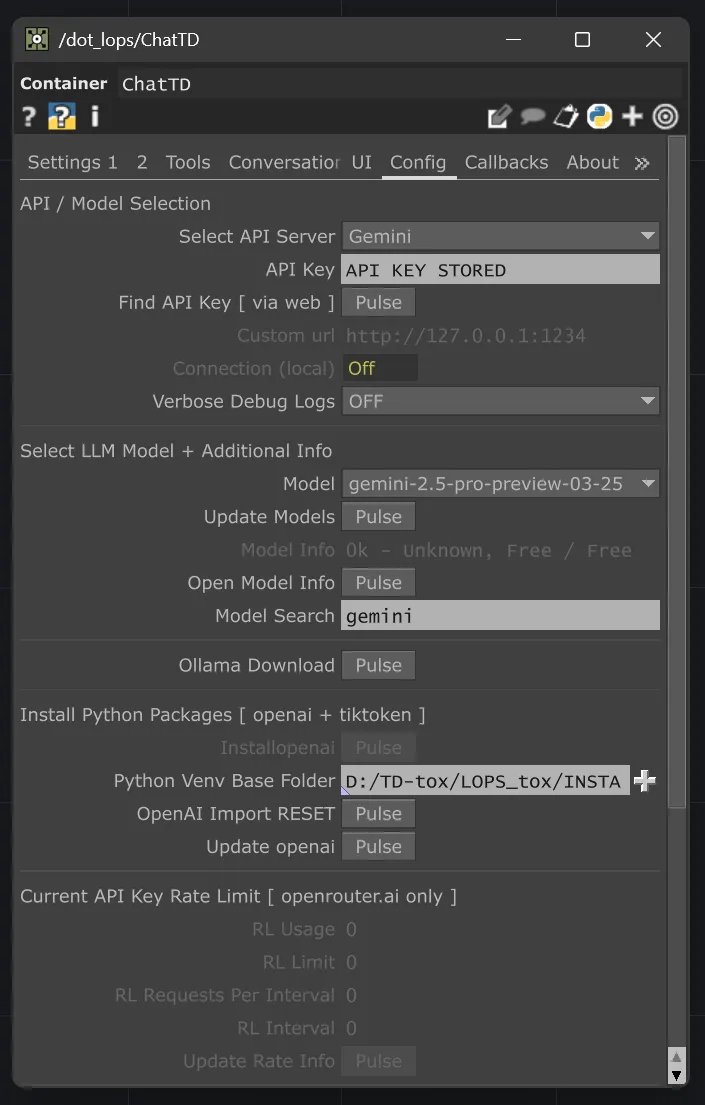
| ChatTD | Provider, model, API key, and shared LLM defaults |
| PythonManager | Shared Python environment and packages |
| MCP Config | External and hosted MCP server connections |
| SideCar | Feature-specific service management |
| Updater | Version and update channel |
| Stubs | Stub and restore controls for project packaging |
| Logging | Log defaults and export |
| Auto Save | Project auto-save settings |
Recommended Setup Order
Section titled “Recommended Setup Order”- Install from the Environment page (Installation guide).
- Configure ChatTD — set a provider, API key, and model before placing Agents.
- Place operators from the LOP tab as your project needs them.
- Configure each operator on its own parameter pages.
New Agents inherit ChatTD’s provider and model defaults. You can override any Agent individually on its Model page.
The LOP tab and its groups are powered by TDFam, which handles operator group labels, ordering, and create-dialog metadata.